Let agents browse, download, upload, and share Dropbox files. Connect with OAuth, choose read or write scopes, and keep tokens out of the agent.
Overview
OneCLI connects AI agents to Dropbox through OAuth. Agents can browse files and folders, download and upload content, and manage sharing. The gateway injects OAuth credentials into requests to the Dropbox API automatically.
What you will set up
A Dropbox connection through OAuth, with read access by default and optional write access
Automatic token injection on requests to the Dropbox API
Per-agent, per-tool access to files and sharing
Setup
1
Open the app
Open the OneCLI dashboard and navigate to Settings > Apps > Dropbox.
2
Authorize
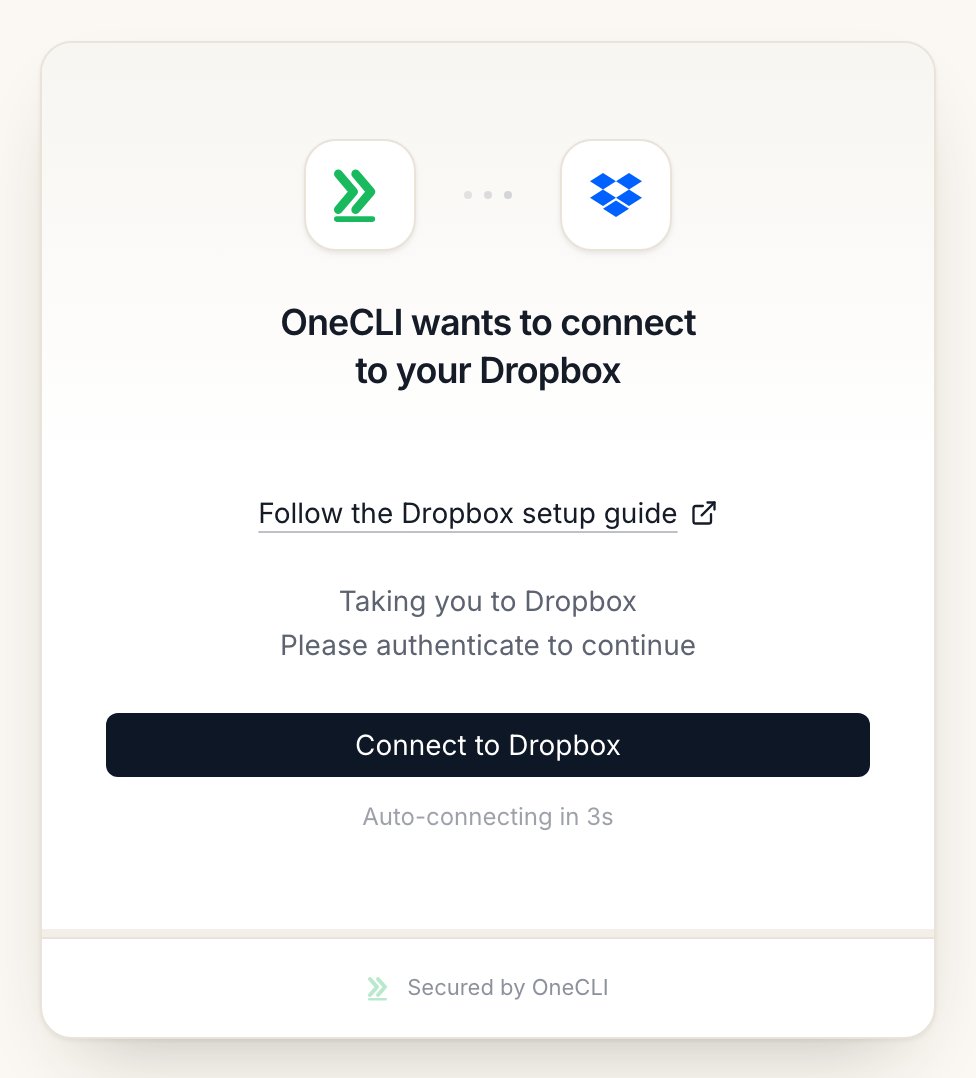
Click Connect Dropbox. You’ll be redirected to Dropbox to authorize OneCLI. Review the requested permissions and click Allow.
The Dropbox connect window on OneCLI Cloud.
OneCLI requests read access to account info, file metadata, and file content by default. Write access for uploading, organizing, and sharing is optional.
3
Verify
After authorization, you’ll be redirected back to the dashboard. The connection will show as Connected with your Dropbox email.
What agents can do
Area
Description
File metadata (read)
List files and folders, view names, sizes, and modification dates
File content (read)
Download and read file content
File content (write)
Upload new files and update existing content
Organize files (write)
Move, rename, and delete files and folders
Sharing (read)
View shared folders and links
Sharing (write)
Create shared links and share folders with others
Use cases
Document processing agents that read files from Dropbox and extract information
Backup agents that upload generated reports or exports
File organization agents that sort and rename files based on content
Collaboration agents that share files and manage folder permissions
Self-hosted: use your own Dropbox app
Skip this section on OneCLI Cloud. It’s only for self-hosted OneCLI without DROPBOX_CLIENT_ID and DROPBOX_CLIENT_SECRET set, or if you want your own company name on Dropbox’s consent screen.
1. Create the Dropbox app
Go to the Dropbox App Console and select Create app. Choose Scoped access and Full Dropbox, name it (for example OneCLI-yourcompany), and create it.
2. Add the permissions
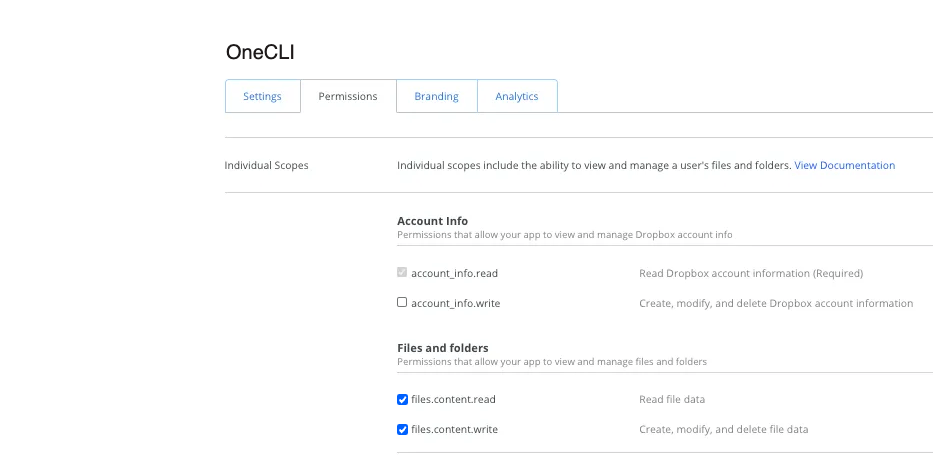
Open Permissions, tick these, and select Submit:account_info.read, files.metadata.read, files.content.read, files.content.write, sharing.read, sharing.write
The Permissions tab of your Dropbox app, with the file scopes ticked.
3. Add the redirect URI
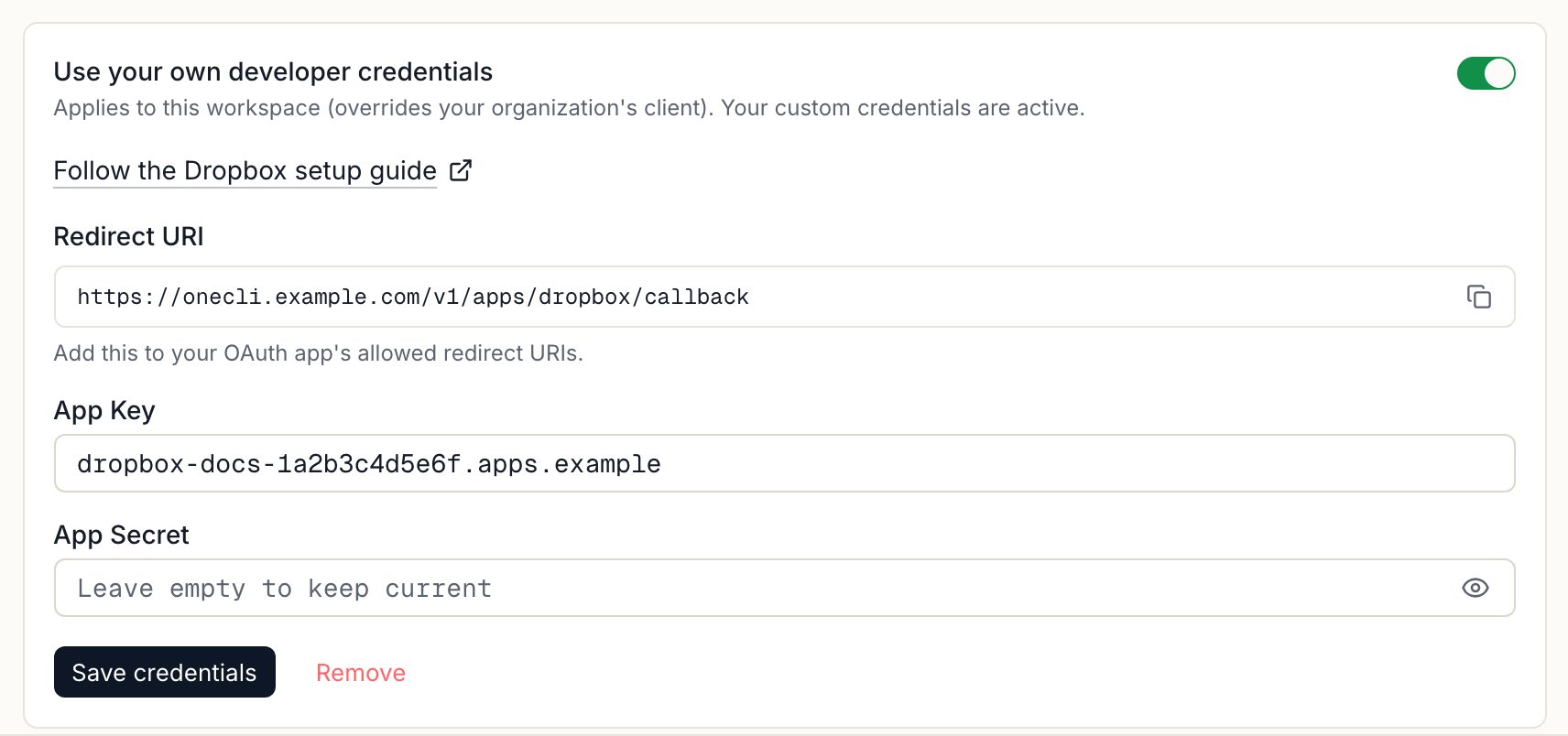
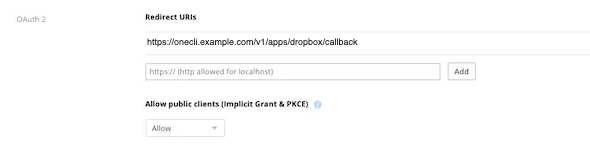
In OneCLI, open Settings > Apps > Dropbox > Custom credentials and copy the Redirect URI. In Dropbox, open Settings, paste it into OAuth 2 > Redirect URIs, and select Add.
Copy the Redirect URI from Custom credentials in OneCLI.
The OAuth 2 section of your Dropbox app's Settings tab, with the OneCLI Redirect URI.
4. Connect with your app
On the Dropbox Settings tab, copy the App key and App secret. Paste both into Settings > Apps > Dropbox > Custom credentials, select Save credentials, then Connect and allow access in Dropbox.
Controlling access
Access is per agent: grant the connection to each agent that needs it, choosing per tool what runs freely, what needs human approval, and what stays blocked — a read-only agent is a single grant. Organization rules add guardrails on top, like rate limits and blanket blocks. Everything is checked before credential injection, so a blocked request never reaches Dropbox.
FAQ
Can I give an agent read-only access to Dropbox?
Yes. OneCLI requests read access by default, and write access is optional. You can also grant only the read tools to a specific agent.
Does the agent see my Dropbox token?
No. The token stays in OneCLI, and the gateway adds it to Dropbox API requests at the proxy. See How it works.
Can I require approval before an agent shares or deletes files?
Yes. Set sharing and delete tools to need approval when you grant the connection, or add organization rules.
How do I reconnect Dropbox?
Open Settings > Apps > Dropbox and connect again. Agents with access use the new connection automatically.
{"docsConfig":{"theme":"mint","$schema":"https://mintlify.com/docs.json","name":"OneCLI","colors":{"primary":"#0b5530","light":"#93e3b4","dark":"#0b5530"},"logo":{"light":"https://mintcdn.com/onecli-sh-docs/JAdtzZwaqVLjjWOS/logo/logo-full-light.svg?fit=max\u0026auto=format\u0026n=JAdtzZwaqVLjjWOS\u0026q=85\u0026s=a7b56b71149ebb0a32928ed6ba02eb86","dark":"https://mintcdn.com/onecli-sh-docs/JAdtzZwaqVLjjWOS/logo/logo-full-dark.svg?fit=max\u0026auto=format\u0026n=JAdtzZwaqVLjjWOS\u0026q=85\u0026s=f7b8a1d875b5f3a99562759a2662ee50","href":"/"},"favicon":"https://mintcdn.com/onecli-sh-docs/GPAiKFgoDh_qYDvG/favicon.png?fit=max\u0026auto=format\u0026n=GPAiKFgoDh_qYDvG\u0026q=85\u0026s=23ea1545092b2fb0f321bbf04bc79764","appearance":{"default":"light"},"background":{"color":{"light":"#ebe6d4","dark":"#083f23"}},"navbar":{"links":[{"href":"https://github.com/onecli/onecli","label":"GitHub"},{"href":"https://onecli.sh","label":"Install"}]},"footer":{"socials":{"github":"https://github.com/onecli"}},"fonts":{"heading":{"family":"Overused Grotesk","weight":600,"source":"fonts/OverusedGroteskRoman-VF.woff2","format":"woff2"}},"contextual":{"options":["copy","view","chatgpt","claude","perplexity","mcp","cursor","vscode"],"display":"header"},"styling":{"latex":false},"navigation":{"global":{"anchors":[{"anchor":"GitHub","icon":"https://mintlify.s3.us-west-1.amazonaws.com/onecli-sh-docs/images/github.svg","href":"https://github.com/onecli"}]},"pages":[]}},"deployment":{"deploymentMetadataValue":{"subdomain":"onecli-sh-docs","hasAudioNarration":false,"actualSubdomain":"onecli-sh-docs","customDomains":[],"gitSource":{"type":"github","owner":"onecli","repo":"onecli-docs","deployBranch":"main","contentDirectory":"","isPrivate":true,"mountPath":"","label":"","_id":"6afb23636b0360be0a1911b0"},"entitlements":{},"buildId":"6afb60e20c708e167fcc2d72","clientVersion":"0.0.4177","searchFilterCounts":[{"language":"default","tag":"API Reference","count":240},{"language":"default","tag":"Workspace","count":105},{"language":"default","tag":"Integrations","count":88},{"language":"default","tag":"All app connections","count":64},{"language":"default","tag":"Enterprise","count":57},{"language":"default","tag":"Organization","count":52},{"language":"default","tag":"Apps","count":29},{"language":"default","tag":"Channels","count":28},{"language":"default","tag":"Platform","count":21},{"language":"default","tag":"Guides","count":17}]},"assistantConfig":{"enableAskAiButton":false,"enableStarterQuestions":false,"enableContextualStarterQuestions":false,"enableAskAiSearchBar":true},"basePath":"/docs","hasChatPermissions":false,"hasWebMcpPermissions":false,"toggles":[],"googleFontsInlined":false},"customCss":[{"filePath":"style.css","content":"a.nav-anchor div.mr-4.rounded-md{--tw-ring-color: transparent !important;--tw-ring-shadow: 0 0 0 0 transparent !important;--tw-ring-offset-shadow: 0 0 0 0 transparent !important;box-shadow:none!important;background:transparent!important;filter:none!important;transition:opacity 0.15s ease!important}a.nav-anchor:hover div.mr-4.rounded-md{--tw-ring-color: transparent !important;--tw-ring-shadow: 0 0 0 0 transparent !important;--tw-ring-offset-shadow: 0 0 0 0 transparent !important;box-shadow:none!important;background:transparent!important;filter:none!important;opacity:0.7!important}a.nav-anchor div.mr-4.rounded-md img{opacity:1!important;filter:none!important;background:transparent!important}a.nav-anchor:hover div.mr-4.rounded-md img{opacity:1!important;filter:none!important;background:transparent!important}.dark a.nav-anchor div.mr-4.rounded-md img,[data-theme=\"dark\"] a.nav-anchor div.mr-4.rounded-md img{filter:invert(1)!important}html:not(.dark) .card,html:not(.dark) .code-block [data-component-part=\"code-block-root\"],html:not(.dark) .callout{background-color:#f3efe1!important}html:not(.dark) .card,html:not(.dark) .code-block{border-color:#cbc3a8!important}html:not(.dark) [data-component-part=\"step-indicator\"]>div,html:not(.dark) [data-component-part=\"step-indicator\"] .bg-gray-50{background-color:#d9d2ba!important;color:#0b5530!important}#theme-preference-menu-item-system,[data-theme-preference=\"system\"]{display:none!important}"}],"page":{"pagePath":"integrations/dropbox","slug":"/integrations/dropbox","pageMetadata":{"title":"Give AI Agents Safe Access to Your Dropbox Files","sidebarTitle":"Dropbox","description":"Let agents browse, download, upload, and share Dropbox files. Connect with OAuth, choose read or write scopes, and keep tokens out of the agent.","canonical":"https://onecli.sh/docs/integrations/dropbox","href":"/integrations/dropbox"},"description":{"compiledSource":"\"use strict\";\nconst {jsx: _jsx} = arguments[0];\nconst {useMDXComponents: _provideComponents} = arguments[0];\nfunction _createMdxContent(props) {\n const _components = {\n p: \"p\",\n ..._provideComponents(),\n ...props.components\n };\n return _jsx(_components.p, {\n children: \"Let agents browse, download, upload, and share Dropbox files. Connect with OAuth, choose read or write scopes, and keep tokens out of the agent.\"\n });\n}\nfunction MDXContent(props = {}) {\n const {wrapper: MDXLayout} = {\n ..._provideComponents(),\n ...props.components\n };\n return MDXLayout ? _jsx(MDXLayout, {\n ...props,\n children: _jsx(_createMdxContent, {\n ...props\n })\n }) : _createMdxContent(props);\n}\nreturn {\n default: MDXContent\n};\n","frontmatter":{},"scope":{}},"pageType":"default","mdx":{"mdxSource":{"compiledSource":"\"use strict\";const{Fragment:_Fragment,jsx:_jsx,jsxs:_jsxs}=arguments[0];const{useMDXComponents:_provideComponents}=arguments[0];function _createMdxContent(props){const _components={a:`a`,code:`code`,li:`li`,p:`p`,strong:`strong`,tbody:`tbody`,td:`td`,th:`th`,thead:`thead`,tr:`tr`,ul:`ul`,..._provideComponents(),...props.components},{Accordion,AccordionGroup,Frame,Heading,Info,OptimizedImage,Step,Steps,Table}=_components;if(!Accordion)_missingMdxReference(`Accordion`,true);if(!AccordionGroup)_missingMdxReference(`AccordionGroup`,true);if(!Frame)_missingMdxReference(`Frame`,true);if(!Heading)_missingMdxReference(`Heading`,true);if(!Info)_missingMdxReference(`Info`,true);if(!OptimizedImage)_missingMdxReference(`OptimizedImage`,true);if(!Step)_missingMdxReference(`Step`,true);if(!Steps)_missingMdxReference(`Steps`,true);if(!Table)_missingMdxReference(`Table`,true);return _jsxs(_Fragment,{children:[_jsx(Heading,{level:`2`,id:`overview`,children:`Overview`}),`\n`,_jsx(_components.p,{children:`OneCLI connects AI agents to Dropbox through OAuth. Agents can browse files and folders, download and upload content, and manage sharing. The gateway injects OAuth credentials into requests to the Dropbox API automatically.`}),`\n`,_jsx(Heading,{level:`2`,id:`what-you-will-set-up`,children:`What you will set up`}),`\n`,_jsxs(_components.ul,{children:[`\n`,_jsx(_components.li,{children:`A Dropbox connection through OAuth, with read access by default and optional write access`}),`\n`,_jsx(_components.li,{children:`Automatic token injection on requests to the Dropbox API`}),`\n`,_jsx(_components.li,{children:`Per-agent, per-tool access to files and sharing`}),`\n`]}),`\n`,_jsx(Heading,{level:`2`,id:`setup`,children:`Setup`}),`\n`,_jsxs(Steps,{children:[_jsx(Step,{title:`Open the app`,children:_jsxs(_components.p,{children:[`Open the OneCLI dashboard and navigate to `,_jsx(_components.strong,{children:`Settings`}),` > `,_jsx(_components.strong,{children:`Apps`}),` > `,_jsx(_components.strong,{children:`Dropbox`}),`.`]})}),_jsxs(Step,{title:`Authorize`,children:[_jsxs(_components.p,{children:[`Click `,_jsx(_components.strong,{children:`Connect Dropbox`}),`. You’ll be redirected to Dropbox to authorize OneCLI. Review the requested permissions and click `,_jsx(_components.strong,{children:`Allow`}),`.`]}),_jsx(Frame,{caption:`The Dropbox connect window on OneCLI Cloud.`,children:_jsx(OptimizedImage,{src:`https://mintcdn.com/onecli-sh-docs/GPAiKFgoDh_qYDvG/images/integrations/dropbox/onecli-connect-dropbox.png?fit=max\u0026auto=format\u0026n=GPAiKFgoDh_qYDvG\u0026q=85\u0026s=ab77f8930091c6eb97c14857a7c645d6`,alt:`OneCLI connect window for Dropbox on Cloud, showing the Connect to Dropbox button.`,\"data-og-width\":`976`,width:`976`,\"data-og-height\":`1078`,height:`1078`,\"data-path\":`images/integrations/dropbox/onecli-connect-dropbox.png`,\"data-optimize\":`true`,\"data-opv\":`3`,srcset:`https://mintcdn.com/onecli-sh-docs/GPAiKFgoDh_qYDvG/images/integrations/dropbox/onecli-connect-dropbox.png?w=280\u0026fit=max\u0026auto=format\u0026n=GPAiKFgoDh_qYDvG\u0026q=85\u0026s=36480a9dd912ac5ecfdf2b8a38178318 280w, https://mintcdn.com/onecli-sh-docs/GPAiKFgoDh_qYDvG/images/integrations/dropbox/onecli-connect-dropbox.png?w=560\u0026fit=max\u0026auto=format\u0026n=GPAiKFgoDh_qYDvG\u0026q=85\u0026s=bcb91e5a0a246981c1cfad182048bbbe 560w, https://mintcdn.com/onecli-sh-docs/GPAiKFgoDh_qYDvG/images/integrations/dropbox/onecli-connect-dropbox.png?w=840\u0026fit=max\u0026auto=format\u0026n=GPAiKFgoDh_qYDvG\u0026q=85\u0026s=e5d22e530e704b428ec4933ef9d01a93 840w, https://mintcdn.com/onecli-sh-docs/GPAiKFgoDh_qYDvG/images/integrations/dropbox/onecli-connect-dropbox.png?w=1100\u0026fit=max\u0026auto=format\u0026n=GPAiKFgoDh_qYDvG\u0026q=85\u0026s=44a3d6906ffd39b13ffcd788736b0a71 1100w, https://mintcdn.com/onecli-sh-docs/GPAiKFgoDh_qYDvG/images/integrations/dropbox/onecli-connect-dropbox.png?w=1650\u0026fit=max\u0026auto=format\u0026n=GPAiKFgoDh_qYDvG\u0026q=85\u0026s=0402cf9d4f8d36d86c78552c7a714426 1650w, https://mintcdn.com/onecli-sh-docs/GPAiKFgoDh_qYDvG/images/integrations/dropbox/onecli-connect-dropbox.png?w=2500\u0026fit=max\u0026auto=format\u0026n=GPAiKFgoDh_qYDvG\u0026q=85\u0026s=4cff9fee01147d6dd5ddce6ab0e52a89 2500w`})}),_jsx(_components.p,{children:`OneCLI requests read access to account info, file metadata, and file content by default. Write access for uploading, organizing, and sharing is optional.`})]}),_jsx(Step,{title:`Verify`,children:_jsxs(_components.p,{children:[`After authorization, you’ll be redirected back to the dashboard. The connection will show as `,_jsx(_components.strong,{children:`Connected`}),` with your Dropbox email.`]})})]}),`\n`,_jsx(Heading,{level:`2`,id:`what-agents-can-do`,children:`What agents can do`}),`\n`,_jsxs(Table,{children:[_jsx(_components.thead,{children:_jsxs(_components.tr,{children:[_jsx(_components.th,{children:`Area`}),_jsx(_components.th,{children:`Description`})]})}),_jsxs(_components.tbody,{children:[_jsxs(_components.tr,{children:[_jsx(_components.td,{children:_jsx(_components.strong,{children:`File metadata (read)`})}),_jsx(_components.td,{children:`List files and folders, view names, sizes, and modification dates`})]}),_jsxs(_components.tr,{children:[_jsx(_components.td,{children:_jsx(_components.strong,{children:`File content (read)`})}),_jsx(_components.td,{children:`Download and read file content`})]}),_jsxs(_components.tr,{children:[_jsx(_components.td,{children:_jsx(_components.strong,{children:`File content (write)`})}),_jsx(_components.td,{children:`Upload new files and update existing content`})]}),_jsxs(_components.tr,{children:[_jsx(_components.td,{children:_jsx(_components.strong,{children:`Organize files (write)`})}),_jsx(_components.td,{children:`Move, rename, and delete files and folders`})]}),_jsxs(_components.tr,{children:[_jsx(_components.td,{children:_jsx(_components.strong,{children:`Sharing (read)`})}),_jsx(_components.td,{children:`View shared folders and links`})]}),_jsxs(_components.tr,{children:[_jsx(_components.td,{children:_jsx(_components.strong,{children:`Sharing (write)`})}),_jsx(_components.td,{children:`Create shared links and share folders with others`})]})]})]}),`\n`,_jsx(Heading,{level:`2`,id:`use-cases`,children:`Use cases`}),`\n`,_jsxs(_components.ul,{children:[`\n`,_jsx(_components.li,{children:`Document processing agents that read files from Dropbox and extract information`}),`\n`,_jsx(_components.li,{children:`Backup agents that upload generated reports or exports`}),`\n`,_jsx(_components.li,{children:`File organization agents that sort and rename files based on content`}),`\n`,_jsx(_components.li,{children:`Collaboration agents that share files and manage folder permissions`}),`\n`]}),`\n`,_jsx(`a`,{id:`self-hosted`,style:{scrollMarginTop:`8rem`}}),`\n`,_jsx(Heading,{level:`2`,id:`self-hosted-use-your-own-dropbox-app`,children:`Self-hosted: use your own Dropbox app`}),`\n`,_jsx(Info,{children:_jsxs(_components.p,{children:[_jsx(_components.strong,{children:`Skip this section on OneCLI Cloud.`}),` It’s only for self-hosted OneCLI without `,_jsx(_components.code,{children:`DROPBOX_CLIENT_ID`}),` and `,_jsx(_components.code,{children:`DROPBOX_CLIENT_SECRET`}),` set, or if you want your own company name on Dropbox’s consent screen.`]})}),`\n`,_jsxs(AccordionGroup,{children:[_jsx(Accordion,{title:`1. Create the Dropbox app`,defaultOpen:true,id:`1-create-the-dropbox-app`,children:_jsxs(_components.p,{children:[`Go to the `,_jsx(_components.a,{href:`https://www.dropbox.com/developers/apps`,children:`Dropbox App Console`}),` and select `,_jsx(_components.strong,{children:`Create app`}),`. Choose `,_jsx(_components.strong,{children:`Scoped access`}),` and `,_jsx(_components.strong,{children:`Full Dropbox`}),`, name it (for example `,_jsx(_components.code,{children:`OneCLI-yourcompany`}),`), and create it.`]})}),_jsxs(Accordion,{title:`2. Add the permissions`,id:`2-add-the-permissions`,children:[_jsxs(_components.p,{children:[`Open `,_jsx(_components.strong,{children:`Permissions`}),`, tick these, and select `,_jsx(_components.strong,{children:`Submit`}),`:`]}),_jsxs(_components.p,{children:[_jsx(_components.code,{children:`account_info.read`}),`, `,_jsx(_components.code,{children:`files.metadata.read`}),`, `,_jsx(_components.code,{children:`files.content.read`}),`, `,_jsx(_components.code,{children:`files.content.write`}),`, `,_jsx(_components.code,{children:`sharing.read`}),`, `,_jsx(_components.code,{children:`sharing.write`})]}),_jsx(Frame,{caption:`The Permissions tab of your Dropbox app, with the file scopes ticked.`,children:_jsx(OptimizedImage,{src:`https://mintcdn.com/onecli-sh-docs/GPAiKFgoDh_qYDvG/images/integrations/dropbox/01-provider-setup.png?fit=max\u0026auto=format\u0026n=GPAiKFgoDh_qYDvG\u0026q=85\u0026s=bb35c2b4a57f56481954a098df222bd0`,alt:`Dropbox app named OneCLI on the Permissions tab, with account_info.read, files.content.read, and files.content.write ticked.`,\"data-og-width\":`933`,width:`933`,\"data-og-height\":`470`,height:`470`,\"data-path\":`images/integrations/dropbox/01-provider-setup.png`,\"data-optimize\":`true`,\"data-opv\":`3`,srcset:`https://mintcdn.com/onecli-sh-docs/GPAiKFgoDh_qYDvG/images/integrations/dropbox/01-provider-setup.png?w=280\u0026fit=max\u0026auto=format\u0026n=GPAiKFgoDh_qYDvG\u0026q=85\u0026s=be54e5b2b2a3794854171bcef8946c78 280w, https://mintcdn.com/onecli-sh-docs/GPAiKFgoDh_qYDvG/images/integrations/dropbox/01-provider-setup.png?w=560\u0026fit=max\u0026auto=format\u0026n=GPAiKFgoDh_qYDvG\u0026q=85\u0026s=7fc1ffe2f37653e9db9d56a901113519 560w, https://mintcdn.com/onecli-sh-docs/GPAiKFgoDh_qYDvG/images/integrations/dropbox/01-provider-setup.png?w=840\u0026fit=max\u0026auto=format\u0026n=GPAiKFgoDh_qYDvG\u0026q=85\u0026s=3c98fc8652418aa0173a7d9669aee28d 840w, https://mintcdn.com/onecli-sh-docs/GPAiKFgoDh_qYDvG/images/integrations/dropbox/01-provider-setup.png?w=1100\u0026fit=max\u0026auto=format\u0026n=GPAiKFgoDh_qYDvG\u0026q=85\u0026s=7535e1a7925ad025439f5b9957c349cc 1100w, https://mintcdn.com/onecli-sh-docs/GPAiKFgoDh_qYDvG/images/integrations/dropbox/01-provider-setup.png?w=1650\u0026fit=max\u0026auto=format\u0026n=GPAiKFgoDh_qYDvG\u0026q=85\u0026s=97ac4bbeded1819d8b572e1a370cfe90 1650w, https://mintcdn.com/onecli-sh-docs/GPAiKFgoDh_qYDvG/images/integrations/dropbox/01-provider-setup.png?w=2500\u0026fit=max\u0026auto=format\u0026n=GPAiKFgoDh_qYDvG\u0026q=85\u0026s=7a84dc569d48a4bb8d167652bbd55fdf 2500w`})})]}),_jsxs(Accordion,{title:`3. Add the redirect URI`,id:`3-add-the-redirect-uri`,children:[_jsxs(_components.p,{children:[`In OneCLI, open `,_jsx(_components.strong,{children:`Settings`}),` > `,_jsx(_components.strong,{children:`Apps`}),` > `,_jsx(_components.strong,{children:`Dropbox`}),` > `,_jsx(_components.strong,{children:`Custom credentials`}),` and copy the `,_jsx(_components.strong,{children:`Redirect URI`}),`. In Dropbox, open `,_jsx(_components.strong,{children:`Settings`}),`, paste it into `,_jsx(_components.strong,{children:`OAuth 2`}),` > `,_jsx(_components.strong,{children:`Redirect URIs`}),`, and select `,_jsx(_components.strong,{children:`Add`}),`.`]}),_jsx(Frame,{caption:`Copy the Redirect URI from Custom credentials in OneCLI.`,children:_jsx(OptimizedImage,{src:`https://mintcdn.com/onecli-sh-docs/GPAiKFgoDh_qYDvG/images/integrations/dropbox/onecli-custom-credentials-dropbox.png?fit=max\u0026auto=format\u0026n=GPAiKFgoDh_qYDvG\u0026q=85\u0026s=ca7df085416a78c7c2e965ed4e0b4de1`,alt:`OneCLI Custom credentials card for Dropbox with the setup guide link, the Redirect URI and its copy button, and the client ID and secret fields.`,\"data-og-width\":`1712`,width:`1712`,\"data-og-height\":`804`,height:`804`,\"data-path\":`images/integrations/dropbox/onecli-custom-credentials-dropbox.png`,\"data-optimize\":`true`,\"data-opv\":`3`,srcset:`https://mintcdn.com/onecli-sh-docs/GPAiKFgoDh_qYDvG/images/integrations/dropbox/onecli-custom-credentials-dropbox.png?w=280\u0026fit=max\u0026auto=format\u0026n=GPAiKFgoDh_qYDvG\u0026q=85\u0026s=cb974d2b6e18052d4f3b5a7735498d9d 280w, https://mintcdn.com/onecli-sh-docs/GPAiKFgoDh_qYDvG/images/integrations/dropbox/onecli-custom-credentials-dropbox.png?w=560\u0026fit=max\u0026auto=format\u0026n=GPAiKFgoDh_qYDvG\u0026q=85\u0026s=e1353c9fddf0d51c6c2da1804b2da0ff 560w, https://mintcdn.com/onecli-sh-docs/GPAiKFgoDh_qYDvG/images/integrations/dropbox/onecli-custom-credentials-dropbox.png?w=840\u0026fit=max\u0026auto=format\u0026n=GPAiKFgoDh_qYDvG\u0026q=85\u0026s=323b2dff711002254734755c79e4a3ab 840w, https://mintcdn.com/onecli-sh-docs/GPAiKFgoDh_qYDvG/images/integrations/dropbox/onecli-custom-credentials-dropbox.png?w=1100\u0026fit=max\u0026auto=format\u0026n=GPAiKFgoDh_qYDvG\u0026q=85\u0026s=c8345ae2f8d6e5de167677bd8bc39bdf 1100w, https://mintcdn.com/onecli-sh-docs/GPAiKFgoDh_qYDvG/images/integrations/dropbox/onecli-custom-credentials-dropbox.png?w=1650\u0026fit=max\u0026auto=format\u0026n=GPAiKFgoDh_qYDvG\u0026q=85\u0026s=743c24367d700bfd631983431bcc024b 1650w, https://mintcdn.com/onecli-sh-docs/GPAiKFgoDh_qYDvG/images/integrations/dropbox/onecli-custom-credentials-dropbox.png?w=2500\u0026fit=max\u0026auto=format\u0026n=GPAiKFgoDh_qYDvG\u0026q=85\u0026s=6035ce15f5d38febdaf3671ac4fb35ad 2500w`})}),_jsx(Frame,{caption:`The OAuth 2 section of your Dropbox app's Settings tab, with the OneCLI Redirect URI.`,children:_jsx(OptimizedImage,{src:`https://mintcdn.com/onecli-sh-docs/GPAiKFgoDh_qYDvG/images/integrations/dropbox/02-provider-redirect.png?fit=max\u0026auto=format\u0026n=GPAiKFgoDh_qYDvG\u0026q=85\u0026s=05a462a80585e6f7546265ba65c99800`,alt:`Dropbox app Settings, OAuth 2 section, with https://onecli.example.com/v1/apps/dropbox/callback under Redirect URIs.`,\"data-og-width\":`590`,width:`590`,\"data-og-height\":`150`,height:`150`,\"data-path\":`images/integrations/dropbox/02-provider-redirect.png`,\"data-optimize\":`true`,\"data-opv\":`3`,srcset:`https://mintcdn.com/onecli-sh-docs/GPAiKFgoDh_qYDvG/images/integrations/dropbox/02-provider-redirect.png?w=280\u0026fit=max\u0026auto=format\u0026n=GPAiKFgoDh_qYDvG\u0026q=85\u0026s=d273b3eb5f8a5dd538dad7d1c806d64f 280w, https://mintcdn.com/onecli-sh-docs/GPAiKFgoDh_qYDvG/images/integrations/dropbox/02-provider-redirect.png?w=560\u0026fit=max\u0026auto=format\u0026n=GPAiKFgoDh_qYDvG\u0026q=85\u0026s=c7ed831b18366d9cb665177ecdb34695 560w, https://mintcdn.com/onecli-sh-docs/GPAiKFgoDh_qYDvG/images/integrations/dropbox/02-provider-redirect.png?w=840\u0026fit=max\u0026auto=format\u0026n=GPAiKFgoDh_qYDvG\u0026q=85\u0026s=528acd7d52f91f9fbf395656e7579b73 840w, https://mintcdn.com/onecli-sh-docs/GPAiKFgoDh_qYDvG/images/integrations/dropbox/02-provider-redirect.png?w=1100\u0026fit=max\u0026auto=format\u0026n=GPAiKFgoDh_qYDvG\u0026q=85\u0026s=56e1fb7033c867ad646f8b688be0389f 1100w, https://mintcdn.com/onecli-sh-docs/GPAiKFgoDh_qYDvG/images/integrations/dropbox/02-provider-redirect.png?w=1650\u0026fit=max\u0026auto=format\u0026n=GPAiKFgoDh_qYDvG\u0026q=85\u0026s=2bc7bfd249b86cbf7bd58527ac88b017 1650w, https://mintcdn.com/onecli-sh-docs/GPAiKFgoDh_qYDvG/images/integrations/dropbox/02-provider-redirect.png?w=2500\u0026fit=max\u0026auto=format\u0026n=GPAiKFgoDh_qYDvG\u0026q=85\u0026s=d41245eee027361c83166f14fbd9297d 2500w`})})]}),_jsx(Accordion,{title:`4. Connect with your app`,id:`4-connect-with-your-app`,children:_jsxs(_components.p,{children:[`On the Dropbox `,_jsx(_components.strong,{children:`Settings`}),` tab, copy the `,_jsx(_components.strong,{children:`App key`}),` and `,_jsx(_components.strong,{children:`App secret`}),`. Paste both into `,_jsx(_components.strong,{children:`Settings`}),` > `,_jsx(_components.strong,{children:`Apps`}),` > `,_jsx(_components.strong,{children:`Dropbox`}),` > `,_jsx(_components.strong,{children:`Custom credentials`}),`, select `,_jsx(_components.strong,{children:`Save credentials`}),`, then `,_jsx(_components.strong,{children:`Connect`}),` and allow access in Dropbox.`]})})]}),`\n`,_jsx(Heading,{level:`2`,id:`controlling-access`,children:`Controlling access`}),`\n`,_jsxs(_components.p,{children:[`Access is per agent: `,_jsx(_components.a,{href:`/guides/agent-access`,children:`grant`}),` the connection to each agent that needs it, choosing per tool what runs freely, what needs human approval, and what stays blocked — a read-only agent is a single grant. Organization `,_jsx(_components.a,{href:`/guides/rules`,children:`rules`}),` add guardrails on top, like rate limits and blanket blocks. Everything is checked before credential injection, so a blocked request never reaches Dropbox.`]}),`\n`,_jsx(Heading,{level:`2`,id:`faq`,children:`FAQ`}),`\n`,_jsxs(AccordionGroup,{children:[_jsx(Accordion,{title:`Can I give an agent read-only access to Dropbox?`,id:`can-i-give-an-agent-read-only-access-to-dropbox`,children:_jsxs(_components.p,{children:[`Yes. OneCLI requests read access by default, and write access is optional. You can also `,_jsx(_components.a,{href:`/guides/agent-access`,children:`grant`}),` only the read tools to a specific agent.`]})}),_jsx(Accordion,{title:`Does the agent see my Dropbox token?`,id:`does-the-agent-see-my-dropbox-token`,children:_jsxs(_components.p,{children:[`No. The token stays in OneCLI, and the gateway adds it to Dropbox API requests at the proxy. See `,_jsx(_components.a,{href:`/how-it-works`,children:`How it works`}),`.`]})}),_jsx(Accordion,{title:`Can I require approval before an agent shares or deletes files?`,id:`can-i-require-approval-before-an-agent-shares-or-deletes-files`,children:_jsxs(_components.p,{children:[`Yes. Set sharing and delete tools to need approval when you grant the connection, or add organization `,_jsx(_components.a,{href:`/guides/rules`,children:`rules`}),`.`]})}),_jsx(Accordion,{title:`How do I reconnect Dropbox?`,id:`how-do-i-reconnect-dropbox`,children:_jsxs(_components.p,{children:[`Open `,_jsx(_components.strong,{children:`Settings`}),` > `,_jsx(_components.strong,{children:`Apps`}),` > `,_jsx(_components.strong,{children:`Dropbox`}),` and connect again. Agents with access use the new connection automatically.`]})})]})]})}function MDXContent(props={}){const{wrapper:MDXLayout}={..._provideComponents(),...props.components};return MDXLayout?_jsx(MDXLayout,{...props,children:_jsx(_createMdxContent,{...props})}):_createMdxContent(props)}return{default:MDXContent};function _missingMdxReference(id,component){throw new Error(`Expected `+(component?`component`:`object`)+\" `\"+id+\"` to be defined: you likely forgot to import, pass, or provide it.\")}","frontmatter":{},"scope":{"config":{},"pageMetadata":{"title":"Give AI Agents Safe Access to Your Dropbox Files","sidebarTitle":"Dropbox","description":"Let agents browse, download, upload, and share Dropbox files. Connect with OAuth, choose read or write scopes, and keep tokens out of the agent.","canonical":"https://onecli.sh/docs/integrations/dropbox","href":"/integrations/dropbox"}}},"mdxSourceWithNoJs":null},"mdxExtracts":{"tableOfContents":[{"title":"Overview","slug":"overview","depth":2,"children":[]},{"title":"What you will set up","slug":"what-you-will-set-up","depth":2,"children":[]},{"title":"Setup","slug":"setup","depth":2,"children":[]},{"title":"What agents can do","slug":"what-agents-can-do","depth":2,"children":[]},{"title":"Use cases","slug":"use-cases","depth":2,"children":[]},{"title":"Self-hosted: use your own Dropbox app","slug":"self-hosted-use-your-own-dropbox-app","depth":2,"children":[]},{"title":"Controlling access","slug":"controlling-access","depth":2,"children":[]},{"title":"FAQ","slug":"faq","depth":2,"children":[]}],"codeExamples":{}},"jsLinks":["/docs/_mintlify/custom/onecli-sh-docs/e8c5fc0faf4d8de9/infra/cloudfront/docs-response-headers.js"],"subdomain":"onecli-sh-docs","siteName":"OneCLI","title":"Give AI Agents Safe Access to Your Dropbox Files - OneCLI","navMaps":{"firstHrefInVersion":{},"firstHrefInLanguage":{}},"lastModified":"2026-11-16T15:49:48.825Z","originalFileLocation":"integrations/dropbox.mdx"},"headHtml":"\u003cscript data-mint-head>(function(){var d=document.documentElement,p=null;if(!p){try{p=localStorage.getItem(\"isDarkMode\")}catch(e){}if(p==='true')p='dark';else if(p==='false')p='light';if(p!=='light'\u0026\u0026p!=='dark'\u0026\u0026p!=='system')p=\"light\"}var r=p==='system'?(matchMedia(\"(prefers-color-scheme: dark)\").matches?'dark':'light'):p;d.classList.remove(r==='dark'?'light':'dark');d.classList.add(r);d.setAttribute(\"data-theme-preference\",p)})();\u003c/script>\u003cmeta data-mint-head name=\"description\" content=\"Let agents browse, download, upload, and share Dropbox files. Connect with OAuth, choose read or write scopes, and keep tokens out of the agent.\">\u003cmeta data-mint-head name=\"application-name\" content=\"OneCLI\">\u003cmeta data-mint-head name=\"generator\" content=\"Mintlify\">\u003clink data-mint-head rel=\"icon\" type=\"image/png\" sizes=\"192x192\" href=\"/docs/mintlify-assets/_mintlify/favicons/onecli-sh-docs/JyF-6zlco6U5Y4rW/_generated/favicon/android-chrome-192x192.png\" media=\"(prefers-color-scheme: light)\">\u003clink data-mint-head rel=\"apple-touch-icon\" type=\"image/png\" sizes=\"180x180\" href=\"/docs/mintlify-assets/_mintlify/favicons/onecli-sh-docs/JyF-6zlco6U5Y4rW/_generated/favicon/apple-touch-icon.png\">\u003clink data-mint-head rel=\"icon\" type=\"image/png\" sizes=\"16x16\" href=\"/docs/mintlify-assets/_mintlify/favicons/onecli-sh-docs/JyF-6zlco6U5Y4rW/_generated/favicon/favicon-16x16.png\" media=\"(prefers-color-scheme: light)\">\u003clink data-mint-head rel=\"icon\" type=\"image/png\" sizes=\"32x32\" href=\"/docs/mintlify-assets/_mintlify/favicons/onecli-sh-docs/JyF-6zlco6U5Y4rW/_generated/favicon/favicon-32x32.png\" media=\"(prefers-color-scheme: light)\">\u003clink data-mint-head rel=\"shortcut icon\" type=\"image/x-icon\" href=\"/docs/mintlify-assets/_mintlify/favicons/onecli-sh-docs/JyF-6zlco6U5Y4rW/_generated/favicon/favicon.ico\" media=\"(prefers-color-scheme: light)\">\u003clink data-mint-head rel=\"icon\" type=\"image/png\" sizes=\"192x192\" href=\"/docs/mintlify-assets/_mintlify/favicons/onecli-sh-docs/JyF-6zlco6U5Y4rW/_generated/favicon-dark/android-chrome-192x192.png\" media=\"(prefers-color-scheme: dark)\">\u003clink data-mint-head rel=\"icon\" type=\"image/png\" sizes=\"16x16\" href=\"/docs/mintlify-assets/_mintlify/favicons/onecli-sh-docs/JyF-6zlco6U5Y4rW/_generated/favicon-dark/favicon-16x16.png\" media=\"(prefers-color-scheme: dark)\">\u003clink data-mint-head rel=\"icon\" type=\"image/png\" sizes=\"32x32\" href=\"/docs/mintlify-assets/_mintlify/favicons/onecli-sh-docs/JyF-6zlco6U5Y4rW/_generated/favicon-dark/favicon-32x32.png\" media=\"(prefers-color-scheme: dark)\">\u003clink data-mint-head rel=\"shortcut icon\" type=\"image/x-icon\" href=\"/docs/mintlify-assets/_mintlify/favicons/onecli-sh-docs/JyF-6zlco6U5Y4rW/_generated/favicon-dark/favicon.ico\" media=\"(prefers-color-scheme: dark)\">\u003cmeta data-mint-head property=\"og:title\" content=\"Give AI Agents Safe Access to Your Dropbox Files - OneCLI\">\u003cmeta data-mint-head property=\"og:description\" content=\"Let agents browse, download, upload, and share Dropbox files. Connect with OAuth, choose read or write scopes, and keep tokens out of the agent.\">\u003cmeta data-mint-head property=\"og:site_name\" content=\"OneCLI\">\u003cmeta data-mint-head property=\"og:url\" content=\"https://onecli.sh/docs/integrations/dropbox\">\u003cmeta data-mint-head property=\"og:type\" content=\"website\">\u003cmeta data-mint-head property=\"og:image\" content=\"https://onecli-sh-docs.mintlify.site/docs/_mintlify/api/og/v2?division=All+app+connections\u0026amp;title=Give+AI+Agents+Safe+Access+to+Your+Dropbox+Files\u0026amp;description=Let+agents+browse%2C+download%2C+upload%2C+and+share+Dropbox+files.+Connect+with+OAuth%2C+choose+read+or+write+scopes%2C+and+keep+tokens+out+of+the+agent.\u0026amp;theme=21276d7bc2dc55570cc64194\u0026amp;signature=18390c357c18cf88b4de5ad3f6e70ba6c304c97aacdbc64400c11985c422f4f4\">\u003cmeta data-mint-head property=\"og:image:width\" content=\"1200\">\u003cmeta data-mint-head property=\"og:image:height\" content=\"630\">\u003cmeta data-mint-head name=\"twitter:card\" content=\"summary_large_image\">\u003cmeta data-mint-head name=\"twitter:title\" content=\"Give AI Agents Safe Access to Your Dropbox Files - OneCLI\">\u003cmeta data-mint-head name=\"twitter:description\" content=\"Let agents browse, download, upload, and share Dropbox files. Connect with OAuth, choose read or write scopes, and keep tokens out of the agent.\">\u003cmeta data-mint-head name=\"twitter:image\" content=\"https://onecli-sh-docs.mintlify.site/docs/_mintlify/api/og/v2?division=All+app+connections\u0026amp;title=Give+AI+Agents+Safe+Access+to+Your+Dropbox+Files\u0026amp;description=Let+agents+browse%2C+download%2C+upload%2C+and+share+Dropbox+files.+Connect+with+OAuth%2C+choose+read+or+write+scopes%2C+and+keep+tokens+out+of+the+agent.\u0026amp;theme=21276d7bc2dc55570cc64194\u0026amp;signature=18390c357c18cf88b4de5ad3f6e70ba6c304c97aacdbc64400c11985c422f4f4\">\u003cmeta data-mint-head name=\"twitter:image:width\" content=\"1200\">\u003cmeta data-mint-head name=\"twitter:image:height\" content=\"630\">\u003cmeta data-mint-head name=\"msapplication-config\" content=\"/docs/mintlify-assets/_mintlify/favicons/onecli-sh-docs/JyF-6zlco6U5Y4rW/_generated/favicon/browserconfig.xml\">\u003cmeta data-mint-head name=\"apple-mobile-web-app-title\" content=\"OneCLI\">\u003cmeta data-mint-head name=\"msapplication-TileColor\" content=\"#0b5530\">\u003clink data-mint-head rel=\"canonical\" href=\"https://onecli.sh/docs/integrations/dropbox\">\u003clink data-mint-head rel=\"alternate\" type=\"application/xml\" href=\"/docs/sitemap.xml\">\u003clink data-mint-head rel=\"alternate\" type=\"text/markdown\" href=\"/docs/integrations/dropbox.md\">\u003cscript data-mint-head type=\"application/ld+json\">{\"@context\":\"https://schema.org\",\"@graph\":[{\"@type\":\"Organization\",\"@id\":\"https://onecli-sh-docs.mintlify.dev/#organization\",\"name\":\"OneCLI\",\"url\":\"https://onecli-sh-docs.mintlify.dev\",\"logo\":{\"@type\":\"ImageObject\",\"url\":\"https://mintcdn.com/onecli-sh-docs/JAdtzZwaqVLjjWOS/logo/logo-full-light.svg?fit=max\u0026auto=format\u0026n=JAdtzZwaqVLjjWOS\u0026q=85\u0026s=a7b56b71149ebb0a32928ed6ba02eb86\"}},{\"@type\":\"WebSite\",\"@id\":\"https://onecli-sh-docs.mintlify.dev/docs#website\",\"name\":\"OneCLI\",\"url\":\"https://onecli-sh-docs.mintlify.dev/docs\",\"publisher\":{\"@id\":\"https://onecli-sh-docs.mintlify.dev/#organization\"}},{\"@type\":\"WebPage\",\"@id\":\"https://onecli.sh/docs/integrations/dropbox#webpage\",\"url\":\"https://onecli.sh/docs/integrations/dropbox\",\"name\":\"Give AI Agents Safe Access to Your Dropbox Files\",\"description\":\"Let agents browse, download, upload, and share Dropbox files. Connect with OAuth, choose read or write scopes, and keep tokens out of the agent.\",\"dateModified\":\"2026-11-16T15:49:48.825Z\",\"isPartOf\":{\"@id\":\"https://onecli-sh-docs.mintlify.dev/docs#website\"},\"breadcrumb\":{\"@id\":\"https://onecli.sh/docs/integrations/dropbox#breadcrumb\"}},{\"@type\":\"BreadcrumbList\",\"@id\":\"https://onecli.sh/docs/integrations/dropbox#breadcrumb\",\"itemListElement\":[{\"@type\":\"ListItem\",\"position\":1,\"name\":\"All app connections\",\"item\":\"https://onecli-sh-docs.mintlify.dev/docs/integrations/affinity\"},{\"@type\":\"ListItem\",\"position\":2,\"name\":\"Give AI Agents Safe Access to Your Dropbox Files\",\"item\":\"https://onecli.sh/docs/integrations/dropbox\"}]},{\"@type\":[\"Article\",\"TechArticle\"],\"@id\":\"https://onecli.sh/docs/integrations/dropbox#article\",\"headline\":\"Give AI Agents Safe Access to Your Dropbox Files\",\"name\":\"Give AI Agents Safe Access to Your Dropbox Files\",\"description\":\"Let agents browse, download, upload, and share Dropbox files. Connect with OAuth, choose read or write scopes, and keep tokens out of the agent.\",\"url\":\"https://onecli.sh/docs/integrations/dropbox\",\"mainEntityOfPage\":{\"@id\":\"https://onecli.sh/docs/integrations/dropbox#webpage\"},\"dateModified\":\"2026-11-16T15:49:48.825Z\",\"publisher\":{\"@id\":\"https://onecli-sh-docs.mintlify.dev/#organization\"},\"isPartOf\":{\"@id\":\"https://onecli-sh-docs.mintlify.dev/docs#website\"}}]}\u003c/script>\u003cscript data-mint-head type=\"application/ld+json\">{\"@context\":\"https://schema.org\",\"@type\":\"WebSite\",\"name\":\"OneCLI\",\"publisher\":{\"@type\":\"Organization\",\"name\":\"OneCLI\"},\"provider\":{\"@type\":\"Organization\",\"name\":\"Mintlify\",\"url\":\"https://mintlify.com\"}}\u003c/script>","agentPointerHref":"/docs/integrations/dropbox.md","siteName":"OneCLI","nav":{"global":{"anchors":[{"anchor":"GitHub","icon":"https://mintlify.s3.us-west-1.amazonaws.com/onecli-sh-docs/images/github.svg","href":"https://github.com/onecli"}]},"tabs":[{"tab":"Documentation","pages":[{"title":"Documentation","href":""}]},{"tab":"Integrations","groups":[{"group":"Integrations","root":{"title":"Integrations: Connect Agents to External Services","sidebarTitle":"Overview","href":"/integrations"},"pages":[{"title":"App Connections: How OAuth \u0026 API Keys Work","sidebarTitle":"App Connections","href":"/integrations/app-connections"},{"title":"Custom Connections: Connect Any API With a Key","sidebarTitle":"Custom connections","href":"/integrations/custom-connections"},{"title":"Chat With AI Agents and Approve Actions in Slack","sidebarTitle":"Slack","href":"/integrations/slack"},{"title":"Keep LLM API Keys Out of Your AI Agents","sidebarTitle":"LLMs","href":"/integrations/llms"},{"title":"External Vaults: Connect Password Managers","sidebarTitle":"External Vaults","href":"/vaults/overview"}]},{"group":"Cloud integrations","pages":[{"title":"Prospect and Enrich Leads in Apollo.io With Agents","sidebarTitle":"Apollo.io","href":"/integrations/apollo-io"},{"title":"Use AWS From AI Agents Without Exposing Keys","sidebarTitle":"AWS","href":"/integrations/aws"},{"title":"Let AI Agents Open PRs and Issues on GitHub","sidebarTitle":"GitHub","href":"/integrations/github"},{"title":"Org-Approved GitHub Repo Access for AI Agents","sidebarTitle":"GitHub App","href":"/integrations/github-app"},{"title":"Let AI Agents Query Datadog Metrics and Monitors","sidebarTitle":"Datadog","href":"/integrations/datadog"},{"title":"Let AI Agents Update HubSpot CRM Records","sidebarTitle":"HubSpot","href":"/integrations/hubspot"},{"title":"Let AI Agents Triage Sentry Errors","sidebarTitle":"Sentry","href":"/integrations/sentry"},{"title":"Let AI Agents Read and Write OneNote Notebooks","sidebarTitle":"Microsoft OneNote","href":"/integrations/microsoft-onenote"},{"title":"Connect AI Agents to Outlook Mail in Microsoft 365","sidebarTitle":"Outlook Mail","href":"/integrations/outlook-mail"},{"title":"Let AI Agents Book Meetings in Outlook Calendar","sidebarTitle":"Outlook Calendar","href":"/integrations/outlook-calendar"}]},{"group":"All app connections","pages":[{"title":"Connect AI Agents to Affinity CRM With an API Key","sidebarTitle":"Affinity","href":"/integrations/affinity"},{"title":"Let AI Agents Manage Attio CRM Records","sidebarTitle":"Attio","href":"/integrations/attio"},{"title":"Run Clay Enrichment From AI Agents","sidebarTitle":"Clay","href":"/integrations/clay"},{"title":"Query PostHog Analytics and Flags From Agents","sidebarTitle":"PostHog","href":"/integrations/posthog"},{"title":"Connect AI Agents to Salesforce With an External App","sidebarTitle":"Salesforce","href":"/integrations/salesforce"},{"title":"Turn Timeless Meetings Into Agent Follow-Ups","sidebarTitle":"Timeless","href":"/integrations/timeless"},{"title":"Let Agents Search Circleback Meeting Notes","sidebarTitle":"Circleback","href":"/integrations/circleback"},{"title":"Run HeyReach LinkedIn Campaigns From AI Agents","sidebarTitle":"HeyReach","href":"/integrations/heyreach"},{"title":"Automate Dripify LinkedIn Outreach With Agents","sidebarTitle":"Dripify","href":"/integrations/dripify"},{"title":"Let On-Call Agents Triage PagerDuty Incidents","sidebarTitle":"PagerDuty","href":"/integrations/pagerduty"},{"title":"Query Coralogix Logs and Metrics From Agents","sidebarTitle":"Coralogix","href":"/integrations/coralogix"},{"title":"Search Company Knowledge in Onyx From Agents","sidebarTitle":"Onyx","href":"/integrations/onyx"},{"title":"Scoped Cloudflare API Tokens for AI Agents","sidebarTitle":"Cloudflare","href":"/integrations/cloudflare"},{"title":"Set Up One Google OAuth Client for All Google Apps","sidebarTitle":"Google (setup)","href":"/integrations/google"},{"title":"Let AI Agents Search, Draft, and Send Gmail","sidebarTitle":"Gmail","href":"/integrations/gmail"},{"title":"Let AI Agents Schedule Meetings in Google Calendar","sidebarTitle":"Google Calendar","href":"/integrations/google-calendar"},{"title":"Give AI Agents Access to Google Drive Files","sidebarTitle":"Google Drive","href":"/integrations/google-drive"},{"title":"Let AI Agents Draft and Edit Google Docs","sidebarTitle":"Google Docs","href":"/integrations/google-docs"},{"title":"Let AI Agents Read and Update Google Sheets","sidebarTitle":"Google Sheets","href":"/integrations/google-sheets"},{"title":"Generate Google Slides Decks With AI Agents","sidebarTitle":"Google Slides","href":"/integrations/google-slides"},{"title":"Build Google Forms and Read Responses With Agents","sidebarTitle":"Google Forms","href":"/integrations/google-forms"},{"title":"Create Google Meet Links From AI Agents","sidebarTitle":"Google Meet","href":"/integrations/google-meet"},{"title":"Search and Organize Google Photos With AI Agents","sidebarTitle":"Google Photos","href":"/integrations/google-photos"},{"title":"Track To-Dos in Google Tasks From AI Agents","sidebarTitle":"Google Tasks","href":"/integrations/google-tasks"},{"title":"Automate Google Workspace User Admin With Agents","sidebarTitle":"Google Admin","href":"/integrations/google-admin"},{"title":"Pull GA4 Reports Into AI Agents","sidebarTitle":"Google Analytics","href":"/integrations/google-analytics"},{"title":"Let AI Agents Check Indexing in Search Console","sidebarTitle":"Google Search Console","href":"/integrations/google-search-console"},{"title":"Automate Google Classroom Coursework With Agents","sidebarTitle":"Google Classroom","href":"/integrations/google-classroom"},{"title":"Manage YouTube Playlists and Analytics With Agents","sidebarTitle":"YouTube","href":"/integrations/youtube"},{"title":"Let AI Agents Search and Update Notion Pages","sidebarTitle":"Notion","href":"/integrations/notion"},{"title":"Let AI Agents Create and Triage Jira Issues","sidebarTitle":"Jira","href":"/integrations/jira"},{"title":"Give AI Agents Search and Edit Access to Confluence","sidebarTitle":"Confluence","href":"/integrations/confluence"},{"title":"Let AI Agents Manage Your Todoist Tasks","sidebarTitle":"Todoist","description":"Let agents create, complete, and organize Todoist tasks and projects. Connect with OAuth, and the gateway injects tokens so agents never handle them.","href":"/integrations/todoist"},{"title":"Give AI Agents Safe Access to Your Dropbox Files","sidebarTitle":"Dropbox","href":"/integrations/dropbox"},{"title":"Deploy to Fly.io From an Agent Without Exposing Tokens","sidebarTitle":"Fly.io","description":"Let agents deploy and manage Fly.io apps, Machines, volumes, and secrets. The gateway injects your API token, so it never reaches the agent.","href":"/integrations/flyio"},{"title":"Let AI Agents Post to LinkedIn on Your Behalf","sidebarTitle":"LinkedIn","href":"/integrations/linkedin"},{"title":"Connect AI Agents to Monday.com Boards","sidebarTitle":"Monday.com","href":"/integrations/monday"},{"title":"Administer MongoDB Atlas Clusters With Agents","sidebarTitle":"MongoDB Atlas","href":"/integrations/mongodb-atlas"},{"title":"Sync Navan Bookings and Expenses With AI Agents","sidebarTitle":"Navan","href":"/integrations/navan"},{"title":"Let AI Agents Send Email With Resend","sidebarTitle":"Resend","href":"/integrations/resend"},{"title":"Send SMS and WhatsApp From AI Agents With Twilio","sidebarTitle":"Twilio","href":"/integrations/twilio"},{"title":"Zendesk Integration: Tickets and Help Center","sidebarTitle":"Zendesk","href":"/integrations/zendesk"},{"title":"Manage Supabase Projects With AI Agents","sidebarTitle":"Supabase","href":"/integrations/supabase"},{"title":"Call Claude and Gemini on Vertex AI From Agents","sidebarTitle":"Vertex AI","href":"/integrations/vertex-ai"},{"title":"Let AI Agents Edit Webflow CMS and Publish Sites","sidebarTitle":"Webflow","href":"/integrations/webflow"},{"title":"Let AI Agents Schedule Zoom Meetings and Get Recordings","sidebarTitle":"Zoom","href":"/integrations/zoom"},{"title":"Give Agents AWS Access With an IAM Role, Not Keys","sidebarTitle":"AWS Role","href":"/integrations/aws-role"},{"title":"Bitbucket Repos, Pull Requests, and Pipelines","sidebarTitle":"Bitbucket","href":"/integrations/bitbucket"},{"title":"Manage Docker Hub Repositories From AI Agents","sidebarTitle":"Docker Hub","href":"/integrations/docker"},{"title":"Read Fathom Meeting Summaries From AI Agents","sidebarTitle":"Fathom","href":"/integrations/fathom"},{"title":"Give AI Agents Access to Fireflies Transcripts","sidebarTitle":"Fireflies","href":"/integrations/fireflies"},{"title":"Let AI Agents Work With GitLab Merge Requests","sidebarTitle":"GitLab","href":"/integrations/gitlab"},{"title":"Send Google Chat Messages From AI Agents","sidebarTitle":"Google Chat","href":"/integrations/google-chat"},{"title":"Let AI Agents Look Up and Update Google Contacts","sidebarTitle":"Google Contacts","href":"/integrations/google-contacts"},{"title":"Let AI Agents Read Your Granola Meeting Notes","sidebarTitle":"Granola","href":"/integrations/granola"},{"title":"Route Agent Package Installs Through JFrog","sidebarTitle":"JFrog Artifactory","href":"/integrations/jfrog-artifactory"},{"title":"Let AI Agents File and Update Linear Issues","sidebarTitle":"Linear","href":"/integrations/linear"},{"title":"Run Snowflake SQL From an Agent, Token Hidden","sidebarTitle":"Snowflake","href":"/integrations/snowflake"},{"title":"Use a Restricted Stripe Key With AI Agents","sidebarTitle":"Stripe","href":"/integrations/stripe"},{"title":"Let AI Agents Manage Trello Boards and Cards","sidebarTitle":"Trello","href":"/integrations/trello"},{"title":"Let AI Agents Deploy and Manage Vercel Projects","sidebarTitle":"Vercel","href":"/integrations/vercel"},{"title":"Let AI Agents Post and Read on X (Twitter)","sidebarTitle":"X","href":"/integrations/x"},{"title":"Let AI Agents Work Zoho CRM Leads and Deals","sidebarTitle":"Zoho CRM","href":"/integrations/zoho-crm"},{"title":"Let AI Agents Draft Word Docs in OneDrive","sidebarTitle":"Microsoft Word","href":"/integrations/microsoft-word"}]},{"group":"LLMs","pages":[{"title":"Connect Claude to Agents With a Token or API Key","sidebarTitle":"Anthropic","href":"/integrations/anthropic"},{"title":"Use OpenAI API Keys and Codex OAuth With AI Agents","sidebarTitle":"OpenAI","href":"/integrations/openai"}]},{"group":"External Vaults","pages":[{"title":"Bitwarden Vault: Sync Secrets to the Gateway","sidebarTitle":"Bitwarden","href":"/vaults/bitwarden"},{"title":"1Password Vault: Service Account Integration","sidebarTitle":"1Password","href":"/vaults/1password"}]}]},{"tab":"Guides","pages":[{"title":"Guides","href":"/guides"}]},{"tab":"API Reference","pages":[{"title":"API Reference","href":"/api-reference"}]},{"tab":"SDKs","pages":[{"title":"SDKs","href":"/sdks"}]}]},"basePath":"","title":"Give AI Agents Safe Access to Your Dropbox Files - OneCLI","deploymentId":"dpl_81ettUQ5G7NASN425B6JKU3FX1Rg","buildId":"dpl_81ettUQ5G7NASN425B6JKU3FX1Rg","dynamics":["07c022d89b","a74be98ba7"],"chunks":["Frame-C6xGbawq.js","DynamicMarkdown-C_R66tyH.js","zoom-image-lightbox-Cr7fyDws.js","lightbox-handle-r17bVUz3.js"]}